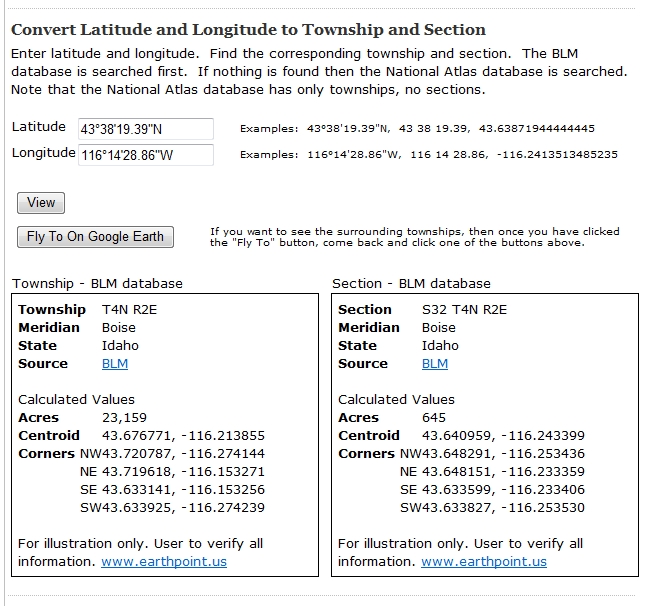
Click for larger image.
If you have more ideas for making Earth Point a better web site, please add a comment.
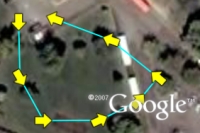 ExcelToKml can draw direction arrows on a GPS track. The column headings to look at are "IconHeading" and "IconColor".
| A | B | C | D | E | F | |
| 1 | Latitude | Longitude | Icon | IconHeading | IconColor | LineColor |
| 2 | 43.6097 | -116.2048 | 196 | line -180 | yellow | aqua |
| 3 | 43.6095 | -116.2047 | 196 | line -180 | yellow | aqua |
| 4 | 43.6094 | -116.2046 | 196 | line -180 | yellow | aqua |
| 5 | 43.6094 | -116.2044 | 196 | line -180 | yellow | aqua |
| 6 | 43.6094 | -116.2042 | 196 | line -180 | yellow | aqua |
| 7 | 43.6095 | -116.2041 | 196 | line -180 | yellow | aqua |
| 8 | 43.6096 | -116.2043 | 196 | line -180 | yellow | aqua |
| 9 | 43.6097 | -116.2046 | 196 | line -180 | yellow | aqua |
 For example, Icon 222 is Google's airplane icon. It looks like this on Google Earth.
 If a value of 90 is entered into the IconHeading column, the icon is rotated 90 degrees to the right.
 If a value of -90 is entered into the IconHeading column, the icon is rotated 90 degrees to the left.
 "line-180" is quite useful when using Icon 196, Google's arrow icon. Notice that by default the arrow points down, not up. If we specified a value of "line" in the IconHeading column, the arrow would point in the wrong direction.
 To fix this, use a value of "line-180" (or "line+180"), which flips the arrow around 180 degrees and points it in the right direction.
 Another problem is that the arrow is hard to see because it is just an outline. Use IconColor to add color to any icon. Yellow looks like this: